Object Selection Modes

Selection Tab of Options dialogue box
Toolbar not available
Pull-down ToolsOptions…
Keyboard DDSELECT
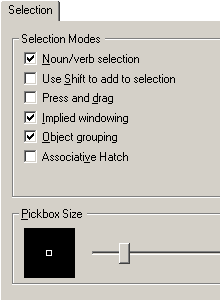
The Selection tab of the Options dialogue box (extract shown on the right) can be used to control many of the settings that have been discussed above and some that have not. In general it is advisable not to change any of the default settings unless you have good reason to do so.
Noun/Verb Selection allows you to select objects either before or after starting a command when it is checked.
Use Shift to Add, does just that when checked. The default is to remove objects when shift picking, as described above.
Press and Drag enables selection windows to be defined by picking and then dragging the mouse when checked. The default method for defining a selection window is to use two pick points.
Implied Windowing enables this type of selection when checked. See "Implied Windowing" above for details.
Object Grouping enables a group of objects to be selected by picking only one of the objects in the group when it is checked.
Associative Hatch causes a hatch boundary to be selected along with the hatch when it is checked.

Selection Tab of Options dialogue box
Toolbar not available
Pull-down ToolsOptions…
Keyboard DDSELECT
The Selection tab of the Options dialogue box (extract shown on the right) can be used to control many of the settings that have been discussed above and some that have not. In general it is advisable not to change any of the default settings unless you have good reason to do so.
Noun/Verb Selection allows you to select objects either before or after starting a command when it is checked.
Use Shift to Add, does just that when checked. The default is to remove objects when shift picking, as described above.
Press and Drag enables selection windows to be defined by picking and then dragging the mouse when checked. The default method for defining a selection window is to use two pick points.
Implied Windowing enables this type of selection when checked. See "Implied Windowing" above for details.
Object Grouping enables a group of objects to be selected by picking only one of the objects in the group when it is checked.
Associative Hatch causes a hatch boundary to be selected along with the hatch when it is checked.

Read more»

Create a Drawing

  1. Start a new drawing, click on New and select "Start from Scratch" from the Create New Drawing dialogue box.
  2. Use the Layer command, Layers from the toolbar or FormatLayer… from the pull-down menu to create two new layers called "Construct" and "Boundary". Set the Construct layer colour to Green and the Boundary layer colour to Red. Set the current layer to "Construct".
Note: If you need more information about layers, see the "Object Properties" tutorial.
  1. Draw a selection of objects, lines, polylines, ellipses etc. including several circles.
  2. Set the current layer to "Boundary" using the Object Properties toolbar.
  3. Draw some more circles.
  4. Now you are going to erase just the circles on the Construct layer, so start the ERASE command, Erase from the Modify toolbar or ModifyErase from the pull-down menu.

  1. Start a new drawing, click on New and select "Start from Scratch" from the Create New Drawing dialogue box.
  2. Use the Layer command, Layers from the toolbar or FormatLayer… from the pull-down menu to create two new layers called "Construct" and "Boundary". Set the Construct layer colour to Green and the Boundary layer colour to Red. Set the current layer to "Construct".
Note: If you need more information about layers, see the "Object Properties" tutorial.
  1. Draw a selection of objects, lines, polylines, ellipses etc. including several circles.
  2. Set the current layer to "Boundary" using the Object Properties toolbar.
  3. Draw some more circles.
  4. Now you are going to erase just the circles on the Construct layer, so start the ERASE command, Erase from the Modify toolbar or ModifyErase from the pull-down menu.

Read more»

Object Selection Filters

It may sometimes happen that you need to create a selection set of objects based upon one or more of their properties. For example, you may want to select all objects on a particular layer or more particularly, you may even want to select all circles on that layer. This type of selection is relatively easy with the Quick Select command discussed above. However, what if you wanted to select all green circles and lines on a particular layer? As good as Quick Select is, it cannot create selections from so many parameters. Fortunately AutoCAD provides a method to filter objects based upon a wide range of selection criteria.
Toolbar not available
Pull-down not available
Keyboard FILTER or FI
Object Selection Filters Dialogue Box

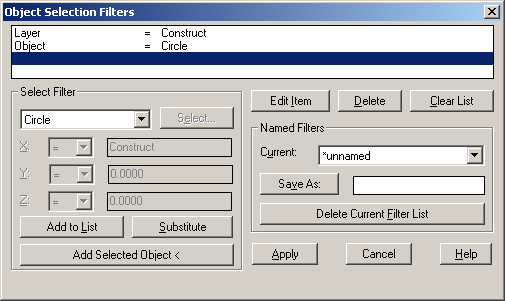
An AutoCAD drawing is simply a database of objects and their properties. Using the Filter command you can define a query just like you would in a database. If you look at the Object Selection Filters dialogue box, shown above, you will see that a filter has been defined that will select all circles on the "Construct" layer.

It may sometimes happen that you need to create a selection set of objects based upon one or more of their properties. For example, you may want to select all objects on a particular layer or more particularly, you may even want to select all circles on that layer. This type of selection is relatively easy with the Quick Select command discussed above. However, what if you wanted to select all green circles and lines on a particular layer? As good as Quick Select is, it cannot create selections from so many parameters. Fortunately AutoCAD provides a method to filter objects based upon a wide range of selection criteria.

Toolbar not available
Pull-down not available
Keyboard FILTER or FI
Object Selection Filters Dialogue Box

An AutoCAD drawing is simply a database of objects and their properties. Using the Filter command you can define a query just like you would in a database. If you look at the Object Selection Filters dialogue box, shown above, you will see that a filter has been defined that will select all circles on the "Construct" layer.

Read more»

Quick Select

The selection tools described in the Object Selection tutorial are fine if you only need to pick a few objects at a time or if you can easily see the objects you want to select. Sometimes though, your selection requirements may not be quite so simple. AutoCAD enables you to create selection sets by building database style queries that can make complex selections really quick and accurate. This tutorial describes the use of AutoCAD's advanced selection tools and how the selection options can be configured for better selection efficiency.

Quick Select

Toolbar not available
Pull-down ToolsQuick Select…
Keyboard QSELECT

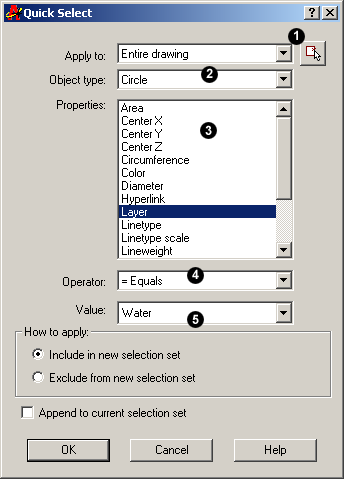
Quick Select made it's debut in AutoCAD 2000 and is designed to help users make complex selections quickly. It is also designed to be a simplified version of the Filter command, detailed below. Quick Select allows you to make selections based upon object properties. Say, for example, that you needed to select all circles on a layer called Water. Quick Select can help you do this. If you look at the dialogue box below, you will see that there are a number of parameters to set. To select all circles on the Water layer, you would make the settings shown in the dialogue box.

Quick Select dialogue box Let's have a closer look at the selection parameters in the Quick Select dialogue box. As with all dialogue boxes, it is important to move methodically through the various parameters. It is even more important in this case because the choices you make at the beginning of the process will affect the options available to you later. Start at the top of the dialogue with "Apply to" and work your way down.


  1. The "Apply to" parameter can be used to cause the selection to be made from the entire drawing or from a selected part of the drawing. Use the Select objects button to create a selection set from which your more detailed selection will be made.
  2. The "Object type" parameter allows you to select objects such as circles, lines etc. The drop-down list contains an inventory of all the different object types in the current drawing. If your selection is to be made from more that one object type, select "Multiple". Note that this parameter only allows you to select one object type or all objects. This is one limitation of Quick Select, although you can append selections to create compound selection sets, see below. However, if you want to make complex selections based upon multiple selection criteria, you may be better of using the more advanced features of the Filter command described below.
  3. The "Properties" parameter allows you to specify which paricular property of an object type to apply to the selection. For example, circle properties include radius, diameter and circumference in addition to the standard object properties like layer and colour. So you could select all circles with with a particular radius or all circles on a particular layer.
  4. The "Operator" parameter determines how the value is applied to the selection. For example, using the equals option with a circle radius and a value set to 24 would mean all circles with a radius of 24 are selected. However, other options available for the operator parameter allow you to select all circles of radius less that 24 or greater than 24 or even all circles except those with a radius of 24. Pretty amazing huh?
  5. The "Value" parameter is used to specify the value of the property you have already chosen. For example, if you had specified Circle and Radius as your object type and property, you might enter "24" as a value. All circles with a radius of 24 would be selected. Or if you had specified Circle and Layer as your object type and property, you could select a layer name such as "Water". In this case, all circles on the layer called Water would be selected.

Finally, using the "How to apply" box, you have the option to have the selected objects either included or excluded from the new selection set. In addition, you can also have this selection appended to the current selection set. The "Append to current selection set" option is particularly useful because it means that you can use Quick Select repeatedly to build up compound selections. For example, you could use Quick Select to select all blue circles and then use it again to select all blue lines. Appending the blue lines selection to the blue circles selection would mean that you end up with a selection of all blue lines and circles.

As you can see, this is a very powerful tool and takes a little time to get used to. However, it is well worth making the effort as it can drastically improve your drawing efficiency. For your convenience, Quick Select is also available from the right-click context menu.

The selection tools described in the Object Selection tutorial are fine if you only need to pick a few objects at a time or if you can easily see the objects you want to select. Sometimes though, your selection requirements may not be quite so simple. AutoCAD enables you to create selection sets by building database style queries that can make complex selections really quick and accurate. This tutorial describes the use of AutoCAD's advanced selection tools and how the selection options can be configured for better selection efficiency.

Quick Select

Toolbar not available
Pull-down ToolsQuick Select…
Keyboard QSELECT

Quick Select made it's debut in AutoCAD 2000 and is designed to help users make complex selections quickly. It is also designed to be a simplified version of the Filter command, detailed below. Quick Select allows you to make selections based upon object properties. Say, for example, that you needed to select all circles on a layer called Water. Quick Select can help you do this. If you look at the dialogue box below, you will see that there are a number of parameters to set. To select all circles on the Water layer, you would make the settings shown in the dialogue box.

Quick Select dialogue box Let's have a closer look at the selection parameters in the Quick Select dialogue box. As with all dialogue boxes, it is important to move methodically through the various parameters. It is even more important in this case because the choices you make at the beginning of the process will affect the options available to you later. Start at the top of the dialogue with "Apply to" and work your way down.


  1. The "Apply to" parameter can be used to cause the selection to be made from the entire drawing or from a selected part of the drawing. Use the Select objects button to create a selection set from which your more detailed selection will be made.
  2. The "Object type" parameter allows you to select objects such as circles, lines etc. The drop-down list contains an inventory of all the different object types in the current drawing. If your selection is to be made from more that one object type, select "Multiple". Note that this parameter only allows you to select one object type or all objects. This is one limitation of Quick Select, although you can append selections to create compound selection sets, see below. However, if you want to make complex selections based upon multiple selection criteria, you may be better of using the more advanced features of the Filter command described below.
  3. The "Properties" parameter allows you to specify which paricular property of an object type to apply to the selection. For example, circle properties include radius, diameter and circumference in addition to the standard object properties like layer and colour. So you could select all circles with with a particular radius or all circles on a particular layer.
  4. The "Operator" parameter determines how the value is applied to the selection. For example, using the equals option with a circle radius and a value set to 24 would mean all circles with a radius of 24 are selected. However, other options available for the operator parameter allow you to select all circles of radius less that 24 or greater than 24 or even all circles except those with a radius of 24. Pretty amazing huh?
  5. The "Value" parameter is used to specify the value of the property you have already chosen. For example, if you had specified Circle and Radius as your object type and property, you might enter "24" as a value. All circles with a radius of 24 would be selected. Or if you had specified Circle and Layer as your object type and property, you could select a layer name such as "Water". In this case, all circles on the layer called Water would be selected.

Finally, using the "How to apply" box, you have the option to have the selected objects either included or excluded from the new selection set. In addition, you can also have this selection appended to the current selection set. The "Append to current selection set" option is particularly useful because it means that you can use Quick Select repeatedly to build up compound selections. For example, you could use Quick Select to select all blue circles and then use it again to select all blue lines. Appending the blue lines selection to the blue circles selection would mean that you end up with a selection of all blue lines and circles.

As you can see, this is a very powerful tool and takes a little time to get used to. However, it is well worth making the effort as it can drastically improve your drawing efficiency. For your convenience, Quick Select is also available from the right-click context menu.

Read more»

Modifying Object: The Explode Command

Toolbar Modify Explode
Pull-down ModifyExplode
Keyboard EXPLODE

The Explode command is used to "explode" single objects back to their constituent parts. In other words, the command is used to return blocks, polylines etc. (which may be composed of a number of component objects) back to their individual component parts. The change has no visible effect.


Tips & TricksHot Tips

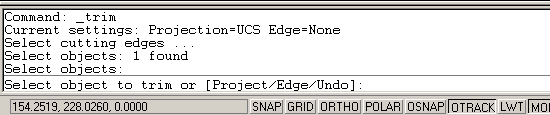
  • Always look at the command line for guidance when you are learning new AutoCAD commands. The command line will prompt you for information and this is the easiest way to find out how a new command works. This is especially true for the more complicated commands like Trim and Extend.
  • The command line window displays 3 lines of text by default. You can change this by clicking and dragging the top of the window frame. When you are starting with AutoCAD you may like to see more than 3 lines. The illustration below shows the command line window increased in size to 6 lines.
AutoCAD command line
  • The command line can also be displayed as a floating text window. The AutoCAD text window is displayed by pressing the F2 key on the keyboard. See Function Keys on the Drawing Aids tutorial for more details.
  • You can control the way text is mirrored using the MIRRTEXT variable.
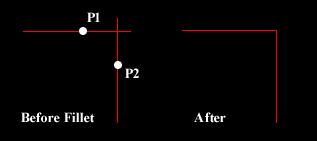
  • Fillet 0You can use the Fillet command with a radius of zero to trim intersecting lines back to their intersection. Of course, you could also achieve this effect with the Trim command but if you have a number of operations to complete, the Fillet method is much quicker.
  • When using the Trim and Extend commands, hitting Return when prompted to "Select cutting edges" and "Select boundary edges" respectively will automatically select all valid cutting or boundary edges on the screen. This can be a real time saver if you have a complicated set of edges to select.


Toolbar Modify Explode
Pull-down ModifyExplode
Keyboard EXPLODE

The Explode command is used to "explode" single objects back to their constituent parts. In other words, the command is used to return blocks, polylines etc. (which may be composed of a number of component objects) back to their individual component parts. The change has no visible effect.


Tips & TricksHot Tips

  • Always look at the command line for guidance when you are learning new AutoCAD commands. The command line will prompt you for information and this is the easiest way to find out how a new command works. This is especially true for the more complicated commands like Trim and Extend.
  • The command line window displays 3 lines of text by default. You can change this by clicking and dragging the top of the window frame. When you are starting with AutoCAD you may like to see more than 3 lines. The illustration below shows the command line window increased in size to 6 lines.
AutoCAD command line
  • The command line can also be displayed as a floating text window. The AutoCAD text window is displayed by pressing the F2 key on the keyboard. See Function Keys on the Drawing Aids tutorial for more details.
  • You can control the way text is mirrored using the MIRRTEXT variable.
  • Fillet 0You can use the Fillet command with a radius of zero to trim intersecting lines back to their intersection. Of course, you could also achieve this effect with the Trim command but if you have a number of operations to complete, the Fillet method is much quicker.
  • When using the Trim and Extend commands, hitting Return when prompted to "Select cutting edges" and "Select boundary edges" respectively will automatically select all valid cutting or boundary edges on the screen. This can be a real time saver if you have a complicated set of edges to select.


Read more»

Modifying Object: The Fillet Command

Toolbar Modify Fillet
Pull-down ModifyFillet
Keyboard FILLET short-cut F

The Fillet command is a very useful tool which allows you to draw an arc between two intersecting lines or adjacent polyline segments. You first need to use the command to set the required radius and then a second time to select the two lines.

Command Sequence

Command: FILLET
Current settings: Mode = TRIM, Radius = 10.0000
Select first object or [Polyline/Radius/Trim]: R
Specify fillet radius <10.000>: 25
Select first object or [Polyline/Radius/Trim]: (pick P1)
Select second object : (pick P2)

Filleting two linesThe Fillet command can also be used to fillet arcs and circles. The "Polyline" option also allows you to fillet all vertices of a polyline with a single command. It's worth experimenting with this command, it can save you lots of time and enables you to construct shapes which otherwise would be quite difficult.

Filleting a closed polylineFor example, you can easily create the lozenge shape shown on the right from a simple rectangle. Since AutoCAD rectangles are just closed polylines, you can use the Polyline option of the Fillet command to fillet all polyline vertexes simultaneously. Try this for yourself; draw a rectangle and then follow the command sequence below.

Command Sequence

Command: FILLET
Current settings: Mode = TRIM, Radius = 10.0000
Select first object or [Polyline/Radius/Trim]: P
Select 2D polyline: (pick P1)
4 lines were filleted

Tip: Make sure that the radius you specify will fit the objects you select, otherwise the fillet command will not work.


Toolbar Modify Fillet
Pull-down ModifyFillet
Keyboard FILLET short-cut F

The Fillet command is a very useful tool which allows you to draw an arc between two intersecting lines or adjacent polyline segments. You first need to use the command to set the required radius and then a second time to select the two lines.

Command Sequence

Command: FILLET
Current settings: Mode = TRIM, Radius = 10.0000
Select first object or [Polyline/Radius/Trim]: R
Specify fillet radius <10.000>: 25
Select first object or [Polyline/Radius/Trim]: (pick P1)
Select second object : (pick P2)

Filleting two linesThe Fillet command can also be used to fillet arcs and circles. The "Polyline" option also allows you to fillet all vertices of a polyline with a single command. It's worth experimenting with this command, it can save you lots of time and enables you to construct shapes which otherwise would be quite difficult.

Filleting a closed polylineFor example, you can easily create the lozenge shape shown on the right from a simple rectangle. Since AutoCAD rectangles are just closed polylines, you can use the Polyline option of the Fillet command to fillet all polyline vertexes simultaneously. Try this for yourself; draw a rectangle and then follow the command sequence below.

Command Sequence

Command: FILLET
Current settings: Mode = TRIM, Radius = 10.0000
Select first object or [Polyline/Radius/Trim]: P
Select 2D polyline: (pick P1)
4 lines were filleted

Tip: Make sure that the radius you specify will fit the objects you select, otherwise the fillet command will not work.


Read more»

Modifying Object: The Chamfer Command

Toolbar Modify Chamfer
Pull-down ModifyChamfer
Keyboard CHAMFER short-cut CHA

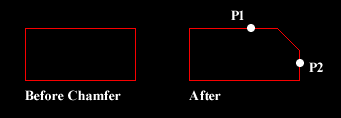
The Chamfer command enables you to create a chamfer between any two non-parallel lines as in the illustration below or any two adjacent polyline segments. Usually, the Chamfer command is used to set the chamfer distances before drawing the chamfer. Follow the command sequence below where the chamfer distances are changed to 20 before the chamfer is made.

Chamfering one corner of a rectangle

Command Sequence

Command: CHAMFER
(TRIM mode) Current chamfer Dist1 = 10.0000, Dist2 = 10.0000
Select first line or [Polyline/Distance/Angle/Trim/Method]: D (to set distances)
Specify first chamfer distance <10.0000>: 20 (enter required distance)
Specify second chamfer distance <20.0000>: Return (first distance value or enter a different value)
Select first line or [Polyline/Distance/Angle/Trim/Method]: (pick P1)
Select second line: (pick P2)
The chamfer is made and the command ends.

Notice from the command sequence that there are a number of options which can be used to control the way the Chamfer command behaves. The Polyline option can be used to chamfer all vertexes of a polyline simultaneously. The Distance option allows you to specify the two chamfer distances. Angle allows the angle between the first line and the chamfer to be specified. Trim is used to control whether the original lines are trimmed to the chamfer or remain as they are. Finally, Method is used to toggle the command between Distance and Angle mode. When Angle mode is used, the chamfer is defined using one distance and an angle rather than two distances.


Toolbar Modify Chamfer
Pull-down ModifyChamfer
Keyboard CHAMFER short-cut CHA

The Chamfer command enables you to create a chamfer between any two non-parallel lines as in the illustration below or any two adjacent polyline segments. Usually, the Chamfer command is used to set the chamfer distances before drawing the chamfer. Follow the command sequence below where the chamfer distances are changed to 20 before the chamfer is made.

Chamfering one corner of a rectangle

Command Sequence

Command: CHAMFER
(TRIM mode) Current chamfer Dist1 = 10.0000, Dist2 = 10.0000
Select first line or [Polyline/Distance/Angle/Trim/Method]: D (to set distances)
Specify first chamfer distance <10.0000>: 20 (enter required distance)
Specify second chamfer distance <20.0000>: Return (first distance value or enter a different value)
Select first line or [Polyline/Distance/Angle/Trim/Method]: (pick P1)
Select second line: (pick P2)
The chamfer is made and the command ends.

Notice from the command sequence that there are a number of options which can be used to control the way the Chamfer command behaves. The Polyline option can be used to chamfer all vertexes of a polyline simultaneously. The Distance option allows you to specify the two chamfer distances. Angle allows the angle between the first line and the chamfer to be specified. Trim is used to control whether the original lines are trimmed to the chamfer or remain as they are. Finally, Method is used to toggle the command between Distance and Angle mode. When Angle mode is used, the chamfer is defined using one distance and an angle rather than two distances.


Read more»

Modifying Object: The Break Command

Toolbar Modify Break
Pull-down ModifyBreak
Keyboard BREAK short-cut BR

The Break command enables you to break (remove part of) an object by defining two break points. In the illustration below, a corner of a rectangle has been removed. The Break command can be used with lines, polylines, circles, arcs ellipses, splines, xlines and rays. When you break an object, you can either select the object using the first break point and then pick the second break point, or you can select the object and then pick the two break points.

Breaking a rectangle

Command Sequence

Command: BREAK
Select objects: (select the object using the first break point, P1)
Specify second break point or [First point]: (pick the second break point, P2)
The section of the object is removed and the command ends.

Sometimes you may want to select the object first and then specify the two break points. If this is the case, use the "First point" option to specify the first break point. By default, AutoCAD assumes that the point used to select the object is the first break point. This is often confusing for new users.

It may sometimes be necessary to break a line into two without removing any part of it. In this case, simply pick the first and second break points in the same position.


Toolbar Modify Break
Pull-down ModifyBreak
Keyboard BREAK short-cut BR

The Break command enables you to break (remove part of) an object by defining two break points. In the illustration below, a corner of a rectangle has been removed. The Break command can be used with lines, polylines, circles, arcs ellipses, splines, xlines and rays. When you break an object, you can either select the object using the first break point and then pick the second break point, or you can select the object and then pick the two break points.

Breaking a rectangle

Command Sequence

Command: BREAK
Select objects: (select the object using the first break point, P1)
Specify second break point or [First point]: (pick the second break point, P2)
The section of the object is removed and the command ends.

Sometimes you may want to select the object first and then specify the two break points. If this is the case, use the "First point" option to specify the first break point. By default, AutoCAD assumes that the point used to select the object is the first break point. This is often confusing for new users.

It may sometimes be necessary to break a line into two without removing any part of it. In this case, simply pick the first and second break points in the same position.


Read more»

Modifying Object: The Extend Command

Toolbar Modify Extend
Pull-down ModifyExtend
Keyboard EXTEND short-cut EX

Extending lines This command extends a line, polyline or arc to meet another drawing object (known as the boundary edge). In the illustration on the right, two lines (red) are extended to meet another line (cyan) which forms the boundary edge. This command works in a similar way to the Trim command, described above. Two selections are made, one for the boundary edge(s) and one for the object(s) to extend.

Extending about the midpoint Lines and other objects can be extended in one of two directions. In the illustration on the right, the red line could be extended either to the right or to the left. You can tell AutoCAD in which direction to extend by picking a point to the right or left of the midpoint respectively. AutoCAD does not intuitively know where the boundary edge lies so you must explicitly indicate the direction of extension by picking either one side or other of the midpoint.

Draw the lines as shown in the illustration and follow the command sequence below.

Command Sequence

Command: EXTEND
Current settings: Projection=UCS Edge=None
Select boundary edges ...
Select objects:
(select the boundary edge, P1)
Select objects: Return (to end boundary edge selection)
Select object to extend or shift-select to trim or [Project/Edge/Undo]: (pick the object which you want to be extended, P2)
Select object to extend or shift-select to trim or [Project/Edge/Undo]: (pick another object which you want to be extended, P3)
Select object to extend or shift-select to trim or [Project/Edge/Undo]: Return (to end)

Sometimes you may get the message "Object does not intersect an edge" or "No edge in that direction". If this happens it means that you are either picking the wrong end of the object or the object you are trying to extend will not meet the boundary edge. The solution is either to pick near the end you want to extend or to move the boundary edge so that the extended line will intersect with it.

Using Edgemode

If the line you are trying to extend does not intersect with the boundary line, you can use the "Edge" option to toggle Edgemode to "Extend" (the default is "No Extend"). When the Extend command is set to Extend Mode, the objects being extended will extend to an imaginary line through the boundary edge, irrespective of whether the extended object actually intersects with the boundary edge. This is particularly useful and can save lots of time.

Edgemode = Extend The illustration on the left shows the result of extending a line (red) to a boundary edge (cyan) with Edgemode set to "Extend". The same process would have resulted in an error message if Edgemode had been set to "No Extend". To get a better understanding of how this works, draw the two lines as shown in the illustration and try to extend them using the default settings. When you have done that, follow the command sequence below.

Command Sequence (Edgemode)

Command: EXTEND
Select boundary edges: (Projmode = UCS, Edgemode = No extend)
Select objects:
(select the boundary edge, P1)
Select objects: Return (to end boundary edge selection)
Select object to extend or shift-select to trim or [Project/Edge/Undo]: E (to use the Edge option)
Enter an implied edge extension mode [Extend/No extend] : E (to set Edgemode to Extend)
Select object to extend or shift-select to trim or [Project/Edge/Undo]: (pick the object to be extended, P2)
Select object to extend or shift-select to trim or [Project/Edge/Undo]: Return (to end)

Notice that the current value of Edgemode is always displayed on the command line when you start the Extend command. The Edge option can also be used with the Trim command to enable trimming to cutting edges which do not actually intersect the object to trim. Edgemode is a system variable, so any change to its value will affect both the Trim and Extend commands.

See the Lengthen command for more ways to extend and trim objects.

Shift Selection with Trim & Extend

You may have noticed during the command sequences for the Trim and Extend commands that you have the option to "shift-select". This feature is new to AutoCAD 2000i and it enables you to extend while using the Trim command and to trim while using the Extend command. These two commands are very closely related and you often need to trim and extend objects at the same time. If you are a beginner with AutoCAD it may be a good idea to avoid this feature initially, the Trim and Extend commands can be tricky to get to grips with in any case. However, do remember this feature because it is a great time saver.


Toolbar Modify Extend
Pull-down ModifyExtend
Keyboard EXTEND short-cut EX

Extending lines This command extends a line, polyline or arc to meet another drawing object (known as the boundary edge). In the illustration on the right, two lines (red) are extended to meet another line (cyan) which forms the boundary edge. This command works in a similar way to the Trim command, described above. Two selections are made, one for the boundary edge(s) and one for the object(s) to extend.

Extending about the midpoint Lines and other objects can be extended in one of two directions. In the illustration on the right, the red line could be extended either to the right or to the left. You can tell AutoCAD in which direction to extend by picking a point to the right or left of the midpoint respectively. AutoCAD does not intuitively know where the boundary edge lies so you must explicitly indicate the direction of extension by picking either one side or other of the midpoint.

Draw the lines as shown in the illustration and follow the command sequence below.

Command Sequence

Command: EXTEND
Current settings: Projection=UCS Edge=None
Select boundary edges ...
Select objects:
(select the boundary edge, P1)
Select objects: Return (to end boundary edge selection)
Select object to extend or shift-select to trim or [Project/Edge/Undo]: (pick the object which you want to be extended, P2)
Select object to extend or shift-select to trim or [Project/Edge/Undo]: (pick another object which you want to be extended, P3)
Select object to extend or shift-select to trim or [Project/Edge/Undo]: Return (to end)

Sometimes you may get the message "Object does not intersect an edge" or "No edge in that direction". If this happens it means that you are either picking the wrong end of the object or the object you are trying to extend will not meet the boundary edge. The solution is either to pick near the end you want to extend or to move the boundary edge so that the extended line will intersect with it.

Using Edgemode

If the line you are trying to extend does not intersect with the boundary line, you can use the "Edge" option to toggle Edgemode to "Extend" (the default is "No Extend"). When the Extend command is set to Extend Mode, the objects being extended will extend to an imaginary line through the boundary edge, irrespective of whether the extended object actually intersects with the boundary edge. This is particularly useful and can save lots of time.

Edgemode = Extend The illustration on the left shows the result of extending a line (red) to a boundary edge (cyan) with Edgemode set to "Extend". The same process would have resulted in an error message if Edgemode had been set to "No Extend". To get a better understanding of how this works, draw the two lines as shown in the illustration and try to extend them using the default settings. When you have done that, follow the command sequence below.

Command Sequence (Edgemode)

Command: EXTEND
Select boundary edges: (Projmode = UCS, Edgemode = No extend)
Select objects:
(select the boundary edge, P1)
Select objects: Return (to end boundary edge selection)
Select object to extend or shift-select to trim or [Project/Edge/Undo]: E (to use the Edge option)
Enter an implied edge extension mode [Extend/No extend] : E (to set Edgemode to Extend)
Select object to extend or shift-select to trim or [Project/Edge/Undo]: (pick the object to be extended, P2)
Select object to extend or shift-select to trim or [Project/Edge/Undo]: Return (to end)

Notice that the current value of Edgemode is always displayed on the command line when you start the Extend command. The Edge option can also be used with the Trim command to enable trimming to cutting edges which do not actually intersect the object to trim. Edgemode is a system variable, so any change to its value will affect both the Trim and Extend commands.

See the Lengthen command for more ways to extend and trim objects.

Shift Selection with Trim & Extend

You may have noticed during the command sequences for the Trim and Extend commands that you have the option to "shift-select". This feature is new to AutoCAD 2000i and it enables you to extend while using the Trim command and to trim while using the Extend command. These two commands are very closely related and you often need to trim and extend objects at the same time. If you are a beginner with AutoCAD it may be a good idea to avoid this feature initially, the Trim and Extend commands can be tricky to get to grips with in any case. However, do remember this feature because it is a great time saver.


Read more»
Modifying Object: The Trim Command

Toolbar Modify Trim
Pull-down ModifyTrim
Keyboard TRIM short-cut TR

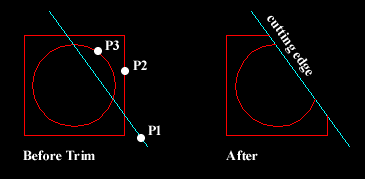
Trimming objects The Trim command can be used to trim a part of an object. In order to trim an object you must draw a second object which forms the "cutting edge". Cutting edges can be lines, xlines, rays, polylines, circles, arcs or ellipses. Blocks and text cannot be trimmed or used as cutting edges. The illustration on the right shows the Trim command in action. The red square and circle have been drawn using the Polygon and Circle commands respectively. In order to trim these objects, a line has been drawn (cyan in the illustration), this forms the cutting edge. The Trim command, unlike most other modify commands requires that two separate object selections are made. The cutting edges are selected first (there can be one or more) and then the objects to be trimmed are selected. In the example above, the line is selected first because it forms the cutting edge and then the square and circle are selected.

The Trim command is slightly more complicated than many other modify commands. To get a better understanding of how it works, draw a square, circle and line as illustrated above and then follow the command sequence below. Don't forget to watch the AutoCAD command line at each stage of the process.
Command Sequence

Command: TRIM
Current settings: Projection=UCS Edge=None
Select cutting edges ...
Select objects:
(select the cutting edge, P1)
Select objects: Return (to end cutting edge selection)
Select object to trim or shift-select to extend or [Project/Edge/Undo]:(pick the part of the square which you want to trim, P2)
Select object to trim or shift-select to extend or [Project/Edge/Undo]: (pick the circle, P3)
Select object to trim or shift-select to extend or [Project/Edge/Undo]: Return (to end)

Notice that at each trimming step you are given the option to undo the previous trim. This can be very useful if you inadvertently pick the wrong object.

In the above example, when the objects were trimmed, both pick points were made to the right of the cutting edge, resulting in the removal of that part of the objects to the right of the cutting edge. Obviously, the portion of square and circle to the left of the cutting edge could have been removed by picking to the left of the cutting edge. Also, you may not have noticed it, but by trimming a circle you have created an Arc object. This makes no visible difference but the object type has changed.


Toolbar Modify Trim
Pull-down ModifyTrim
Keyboard TRIM short-cut TR

Trimming objects The Trim command can be used to trim a part of an object. In order to trim an object you must draw a second object which forms the "cutting edge". Cutting edges can be lines, xlines, rays, polylines, circles, arcs or ellipses. Blocks and text cannot be trimmed or used as cutting edges. The illustration on the right shows the Trim command in action. The red square and circle have been drawn using the Polygon and Circle commands respectively. In order to trim these objects, a line has been drawn (cyan in the illustration), this forms the cutting edge. The Trim command, unlike most other modify commands requires that two separate object selections are made. The cutting edges are selected first (there can be one or more) and then the objects to be trimmed are selected. In the example above, the line is selected first because it forms the cutting edge and then the square and circle are selected.

The Trim command is slightly more complicated than many other modify commands. To get a better understanding of how it works, draw a square, circle and line as illustrated above and then follow the command sequence below. Don't forget to watch the AutoCAD command line at each stage of the process.

Command Sequence

Command: TRIM
Current settings: Projection=UCS Edge=None
Select cutting edges ...
Select objects:
(select the cutting edge, P1)
Select objects: Return (to end cutting edge selection)
Select object to trim or shift-select to extend or [Project/Edge/Undo]:(pick the part of the square which you want to trim, P2)
Select object to trim or shift-select to extend or [Project/Edge/Undo]: (pick the circle, P3)
Select object to trim or shift-select to extend or [Project/Edge/Undo]: Return (to end)

Notice that at each trimming step you are given the option to undo the previous trim. This can be very useful if you inadvertently pick the wrong object.

In the above example, when the objects were trimmed, both pick points were made to the right of the cutting edge, resulting in the removal of that part of the objects to the right of the cutting edge. Obviously, the portion of square and circle to the left of the cutting edge could have been removed by picking to the left of the cutting edge. Also, you may not have noticed it, but by trimming a circle you have created an Arc object. This makes no visible difference but the object type has changed.


Read more»

Modifying Object: The Lengthen Command

Toolbar Modify Lengthen
Pull-down ModifyLengthen
Keyboard LENGTHEN short-cut LEN

The Lengthen command can often be used instead of either the Trim or Extend commands. Indeed the end result is exactly the same. The Lengthen command can be used to either lengthen or shorten Lines, Arcs, open Polylines, elliptical Arcs and open Splines without the use of cutting or boundary edges.

Command Sequence

Command: LENGTHEN
Select an object or [DElta/Percent/Total/DYnamic]: DY
Select an object to change or [Undo]: (select a line or arc)
Specify new end point: (pick new end point)
Select an object to change or [Undo]: Return (to end)

The command sequence above demonstrates the use of the Dynamic Lengthen option which is probably the most useful for general purpose drafting. However, the other options are worth getting to know because they can save lots of time and effort.

The Total option allows you to change the total length of a line to any value that you specify. The Percent option allows you to change a line length using a percentage. For example, a value of 50 will result in a line one half the length of the original and a value of 200 will result in a line twice the length of the original. The Delta option can be used to extend or reduce the endpoint of a line by a given distance. The endpoint affected by the change is the one closest to the pick point when the object selection is made.


Toolbar Modify Lengthen
Pull-down ModifyLengthen
Keyboard LENGTHEN short-cut LEN

The Lengthen command can often be used instead of either the Trim or Extend commands. Indeed the end result is exactly the same. The Lengthen command can be used to either lengthen or shorten Lines, Arcs, open Polylines, elliptical Arcs and open Splines without the use of cutting or boundary edges.

Command Sequence

Command: LENGTHEN
Select an object or [DElta/Percent/Total/DYnamic]: DY
Select an object to change or [Undo]: (select a line or arc)
Specify new end point: (pick new end point)
Select an object to change or [Undo]: Return (to end)

The command sequence above demonstrates the use of the Dynamic Lengthen option which is probably the most useful for general purpose drafting. However, the other options are worth getting to know because they can save lots of time and effort.

The Total option allows you to change the total length of a line to any value that you specify. The Percent option allows you to change a line length using a percentage. For example, a value of 50 will result in a line one half the length of the original and a value of 200 will result in a line twice the length of the original. The Delta option can be used to extend or reduce the endpoint of a line by a given distance. The endpoint affected by the change is the one closest to the pick point when the object selection is made.


Read more»

Modifying Object: Stretching with Grips

Although the Stretch command can be very useful, it has largely been superseded by the use of "Grips" which allow this sort of modification to be made much more intuitively.

Stretching with Grips

To stretch an object using grips, simply select the object by clicking on it (you can do this without starting a command). The object becomes highlighted and small square grips appear at each vertex and various snap points, depending upon the object type. Click a grip to activate it and click again to reposition it. When you have completed your modifications, use the Escape key (Esc) at the top left of your keyboard to deselect the object and release grips.


Although the Stretch command can be very useful, it has largely been superseded by the use of "Grips" which allow this sort of modification to be made much more intuitively.

Stretching with Grips

To stretch an object using grips, simply select the object by clicking on it (you can do this without starting a command). The object becomes highlighted and small square grips appear at each vertex and various snap points, depending upon the object type. Click a grip to activate it and click again to reposition it. When you have completed your modifications, use the Escape key (Esc) at the top left of your keyboard to deselect the object and release grips.


Read more»

Modifying Object: The Stretch Command

Toolbar Modify Stretch
Pull-down ModifyStretch
Keyboard STRETCH short-cut S

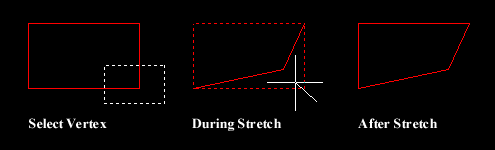
The Stretch command can be used to move one or more vertices of an object whilst leaving the rest of the object unchanged. In the example below, a rectangle has been stretched by moving one vertex to create an irregular shape.

Stretching a rectangle

Command Sequence

Command: STRETCH
Select objects to stretch by crossing-window or crossing-polygon...
Select objects: (pick first point of crossing window)
Specify opposite corner: (pick second point of window)
Select objects: Return (to end selection)
Specify base point or displacement: (pick base point)
Specify second point of displacement: (pick second point)

To select vertices to stretch, you must use a crossing window or polygon. See the "Object Selection" tutorial for details of these selection methods.


Toolbar Modify Stretch
Pull-down ModifyStretch
Keyboard STRETCH short-cut S

The Stretch command can be used to move one or more vertices of an object whilst leaving the rest of the object unchanged. In the example below, a rectangle has been stretched by moving one vertex to create an irregular shape.

Stretching a rectangle

Command Sequence

Command: STRETCH
Select objects to stretch by crossing-window or crossing-polygon...
Select objects: (pick first point of crossing window)
Specify opposite corner: (pick second point of window)
Select objects: Return (to end selection)
Specify base point or displacement: (pick base point)
Specify second point of displacement: (pick second point)

To select vertices to stretch, you must use a crossing window or polygon. See the "Object Selection" tutorial for details of these selection methods.


Read more»

Modifying Object: The Scale Command

Toolbar Modify Scale
Pull-down ModifyScale
Keyboard SCALE short-cut SC

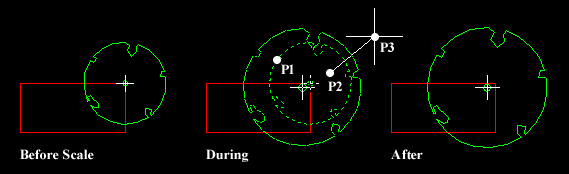
The Scale command can be used to change the size of an object or group of objects. You are prompted for a pick point about which the selection set will be scaled. Scaling can then be completed by picking a second point (not always easy because it can sometimes be difficult to precisely control the scaling) or by entering a scale factor at the keyboard. For example a scale factor of 2 will double the size of the objects in the selection set and a factor of 0.5 will half them.

Scaling an object

Command Sequence

Command: SCALE
Select objects: (pick objects to be scaled, P1)
Select objects: Return (to end selection)
Specify base point: (pick base point, P2)
Specify scale factor or [Reference]: (pick second point, P3 or enter scale factor)

In the example shown above, the original tree symbol has been enlarged by dynamically scaling it using pick points to determine the change in scale. If you want to scale an object precisely, it is much easier to enter a scale factor using the keyboard.

Note that the position of the new sized tree symbol is determined by the location of the base point. The base point, P2 has been picked to the upper right of the centre of the tree which resulted in the centre of the tree shifting to a lower left position. If the base point had been picked in the centre of the tree symbol, the tree would have remained in the same position. In theory the base point can be any point in the drawing area but for ease of control it is best to choose a known point so that the results are obvious.


Toolbar Modify Scale
Pull-down ModifyScale
Keyboard SCALE short-cut SC

The Scale command can be used to change the size of an object or group of objects. You are prompted for a pick point about which the selection set will be scaled. Scaling can then be completed by picking a second point (not always easy because it can sometimes be difficult to precisely control the scaling) or by entering a scale factor at the keyboard. For example a scale factor of 2 will double the size of the objects in the selection set and a factor of 0.5 will half them.

Scaling an object

Command Sequence

Command: SCALE
Select objects: (pick objects to be scaled, P1)
Select objects: Return (to end selection)
Specify base point: (pick base point, P2)
Specify scale factor or [Reference]: (pick second point, P3 or enter scale factor)

In the example shown above, the original tree symbol has been enlarged by dynamically scaling it using pick points to determine the change in scale. If you want to scale an object precisely, it is much easier to enter a scale factor using the keyboard.

Note that the position of the new sized tree symbol is determined by the location of the base point. The base point, P2 has been picked to the upper right of the centre of the tree which resulted in the centre of the tree shifting to a lower left position. If the base point had been picked in the centre of the tree symbol, the tree would have remained in the same position. In theory the base point can be any point in the drawing area but for ease of control it is best to choose a known point so that the results are obvious.


Read more»