Tips & Tricks

  • You will have noticed that many of the draw commands require the Return key on the keyboard to be pressed to end them. In AutoCAD, clicking the right mouse key and selecting "Enter" from the context menu has the same effect as using the Return key on the keyboard. Using the right-click context menu is a much more efficient way of working than using the keyboard.
  • You can also use the Return key or right mouse click to repeat the last command used. When a command has ended, you can start it again by right clicking and selecting "Repeat command" from the context menu rather that entering the command at the keyboard or selecting it from the pull-down or toolbar. By this method it is possible, for example, to repeat the line command without specifically invoking it. The command sequence might be something like the one below.

Command Sequence

Command: LINE
Specify first point: (pick P1)
Specify next point or [Undo]: (pick P2)
Specify next point or [Undo]: (right-click and select Enter)
Command: (right-click and select Repeat Line)
Specify first point: (pick P1)
Specify next point or [Undo]: (pick P2)
Specify next point or [Undo]: (right-click and select Enter)
Command: (right-click and select Repeat Line)…

You could continue this cycle as long as you needed, using only the mouse for input.

  • You can change the Linetype of any of the objects created in the above tutorial. By default all lines are drawn with a linetype called "Continuous". This displays as a solid line. However, lines can be displayed with a dash, dash-dot and a whole range of variations. See the Object Properties tutorial for details.

  • You will have noticed that many of the draw commands require the Return key on the keyboard to be pressed to end them. In AutoCAD, clicking the right mouse key and selecting "Enter" from the context menu has the same effect as using the Return key on the keyboard. Using the right-click context menu is a much more efficient way of working than using the keyboard.
  • You can also use the Return key or right mouse click to repeat the last command used. When a command has ended, you can start it again by right clicking and selecting "Repeat command" from the context menu rather that entering the command at the keyboard or selecting it from the pull-down or toolbar. By this method it is possible, for example, to repeat the line command without specifically invoking it. The command sequence might be something like the one below.

Command Sequence

Command: LINE
Specify first point: (pick P1)
Specify next point or [Undo]: (pick P2)
Specify next point or [Undo]: (right-click and select Enter)
Command: (right-click and select Repeat Line)
Specify first point: (pick P1)
Specify next point or [Undo]: (pick P2)
Specify next point or [Undo]: (right-click and select Enter)
Command: (right-click and select Repeat Line)…

You could continue this cycle as long as you needed, using only the mouse for input.

  • You can change the Linetype of any of the objects created in the above tutorial. By default all lines are drawn with a linetype called "Continuous". This displays as a solid line. However, lines can be displayed with a dash, dash-dot and a whole range of variations. See the Object Properties tutorial for details.

Read more»

The Multiline Style Command

Toolbarnone
Pull-down FormatMultiline Style…
Keyboard MLSTYLE

The Multiline style command is used to create new multiline styles, which can then be used with the Multiline command. When you start the command for the first time, you will see the Multiline Styles dialogue box indicating that the Standard style is "Current". To create a new style, enter a new style name in the "Name" edit box by overwriting "STANDARD" and enter an optional description in the "Description" edit box. The dialogue box should now look something like the one on the right. When you are happy with the new name and description, simply click on the "Add" button. Your new style will now appear in the "Current" box. The new style you have created is simply a copy of the Standard style, so the next step is to change the style to suit your own purposes. Click on the "Element Properties…" button to proceed.
Element Properties Dialogue Box

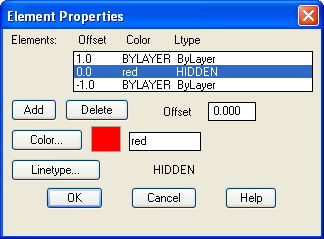
You will now see the Element Properties dialogue box appear. This dialogue box allows you to add new line elements or delete existing ones and to control the element offset, colour and linetype. Click the "Add" button to add a new element. A new line element now appears with an offset of 0.0, in other words, this is a centre line. Highlight the top element in the "Elements" list and change the offset to 1.0 by entering this value in the "Offset" edit box. Now do the same with the bottom element remembering to enter a value of -1.0 because this is a negative offset. You now have a multiline that is 2 drawing units wide with a centre line. Let's now change the colour and linetype of the centre line.

Highlight the 0.0 offset element by clicking it in the "Elements" list. To change the colour, simply click on the Colour… button and select an appropriate colour from the palette. When a colour has been selected, click the "OK" button on the palette to return to the Element Properties dialogue box.

Changing the linetype is a little more complicated because we will need to load the required linetype first. However, click on the "Linetype…" button to proceed.

Select Linetype Dialogue Box

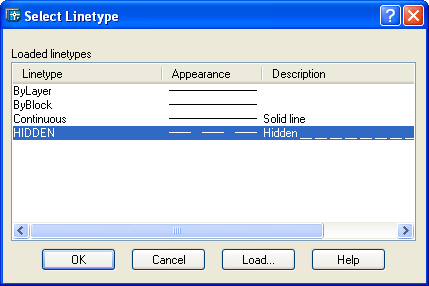
The Select Linetype dialogue box appears with just a few solid linetypes listed, ByLayer, ByBlock and Continuous. Click on the "Load…" button. The Load or Reload Linetypes dialogue box now appears. Scroll down the list of linetypes until you find one called "Hidden". Highlight Hidden and then click the "OK" button. You will now see the Hidden linetype appear in the "Loaded linetypes" list in the Select Linetype dialogue box, which should now look similar to the one shown above. Finally, highlight Hidden and click the "OK" button. Your Element Properties dialogue box should now look similar to the one in the illustration above. To complete our new style, we will add some end caps and a solid fill. Click on the "Multiline Properties…" button to proceed.
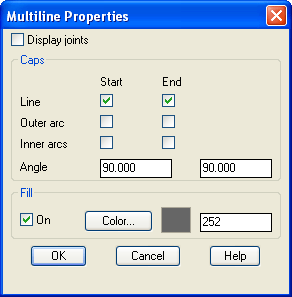
Multiline Properties Dialogue Box


In the Multiline Properties dialogue box, click in the "Line" check boxes under "Start" and "End". This will have the effect of capping the ends of the multiline with a 90 degree line. As you can see from the dialogue box, you can change this angle if you wish to give a chamfered end. Next, click the "On" check box in the "Fill" section and then click on the Colour… button and select the fill colour from the palette. The Multiline Properties dialogue box should now look like the one in the illustration on the left. Finally, click the "OK" button in the Multiline Properties dialogue box and again in the Multiline Style dialogue box. You are now ready to draw with your new multiline.

Start the Multiline command, pick a number of points and admire your handiwork. If you have followed this tutorial closely, your new multiline should look something like the one in the illustration on the right. Notice the effect of the various changes you have made compared with the Standard multiline style.
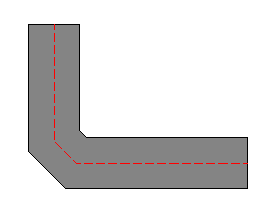
Resulting Multiline

One limitation of multiline styles is that you cannot modify a style if there are multilines referencing the style in the current drawing. This is a shame because it means that it is not possible to update multiline styles in the same way as it is possible to update text or dimension styles. You also cannot change the style of an existing multiline. If you really want to modify a multiline style, you will have to erase all multilines that reference the style first.

If you are new to AutoCAD, the whole process of working with multilines and creating multiline styles may appear a little bewildering because it touches upon a number of aspects of the program with which you may not be familiar. If this is the case, it may be a good idea to return to this tutorial in the future. Multilines are useful because they can save lots of time but their use is fairly specific and you should think carefully before using them. It may, for example, be more convenient simply to draw a polyline and to create offsets using the Offset command.

Toolbarnone
Pull-down FormatMultiline Style…
Keyboard MLSTYLE

The Multiline style command is used to create new multiline styles, which can then be used with the Multiline command. When you start the command for the first time, you will see the Multiline Styles dialogue box indicating that the Standard style is "Current". To create a new style, enter a new style name in the "Name" edit box by overwriting "STANDARD" and enter an optional description in the "Description" edit box. The dialogue box should now look something like the one on the right. When you are happy with the new name and description, simply click on the "Add" button. Your new style will now appear in the "Current" box. The new style you have created is simply a copy of the Standard style, so the next step is to change the style to suit your own purposes. Click on the "Element Properties…" button to proceed.

Element Properties Dialogue Box

You will now see the Element Properties dialogue box appear. This dialogue box allows you to add new line elements or delete existing ones and to control the element offset, colour and linetype. Click the "Add" button to add a new element. A new line element now appears with an offset of 0.0, in other words, this is a centre line. Highlight the top element in the "Elements" list and change the offset to 1.0 by entering this value in the "Offset" edit box. Now do the same with the bottom element remembering to enter a value of -1.0 because this is a negative offset. You now have a multiline that is 2 drawing units wide with a centre line. Let's now change the colour and linetype of the centre line.

Highlight the 0.0 offset element by clicking it in the "Elements" list. To change the colour, simply click on the Colour… button and select an appropriate colour from the palette. When a colour has been selected, click the "OK" button on the palette to return to the Element Properties dialogue box.

Changing the linetype is a little more complicated because we will need to load the required linetype first. However, click on the "Linetype…" button to proceed.

Select Linetype Dialogue Box

The Select Linetype dialogue box appears with just a few solid linetypes listed, ByLayer, ByBlock and Continuous. Click on the "Load…" button. The Load or Reload Linetypes dialogue box now appears. Scroll down the list of linetypes until you find one called "Hidden". Highlight Hidden and then click the "OK" button. You will now see the Hidden linetype appear in the "Loaded linetypes" list in the Select Linetype dialogue box, which should now look similar to the one shown above. Finally, highlight Hidden and click the "OK" button. Your Element Properties dialogue box should now look similar to the one in the illustration above. To complete our new style, we will add some end caps and a solid fill. Click on the "Multiline Properties…" button to proceed.

Multiline Properties Dialogue Box


In the Multiline Properties dialogue box, click in the "Line" check boxes under "Start" and "End". This will have the effect of capping the ends of the multiline with a 90 degree line. As you can see from the dialogue box, you can change this angle if you wish to give a chamfered end. Next, click the "On" check box in the "Fill" section and then click on the Colour… button and select the fill colour from the palette. The Multiline Properties dialogue box should now look like the one in the illustration on the left. Finally, click the "OK" button in the Multiline Properties dialogue box and again in the Multiline Style dialogue box. You are now ready to draw with your new multiline.

Start the Multiline command, pick a number of points and admire your handiwork. If you have followed this tutorial closely, your new multiline should look something like the one in the illustration on the right. Notice the effect of the various changes you have made compared with the Standard multiline style.

Resulting Multiline

One limitation of multiline styles is that you cannot modify a style if there are multilines referencing the style in the current drawing. This is a shame because it means that it is not possible to update multiline styles in the same way as it is possible to update text or dimension styles. You also cannot change the style of an existing multiline. If you really want to modify a multiline style, you will have to erase all multilines that reference the style first.

If you are new to AutoCAD, the whole process of working with multilines and creating multiline styles may appear a little bewildering because it touches upon a number of aspects of the program with which you may not be familiar. If this is the case, it may be a good idea to return to this tutorial in the future. Multilines are useful because they can save lots of time but their use is fairly specific and you should think carefully before using them. It may, for example, be more convenient simply to draw a polyline and to create offsets using the Offset command.

Read more»

The Multiline Command

Toolbar custom Multiline
Pull-down DrawMultiline
Keyboard MLINE short-cut ML

The Multiline command is used to draw multilines. This process of drawing is pretty much the same as drawing polylines, additional line segments are added to the multiline as points are picked. As with polylines, points can be unpicked with the Undo option and multilines can be closed.

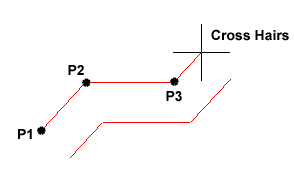
When you start the Multiline command you also have the option to specify the Justification, Scale and Style of the multiline. The Justification option allows you to set the justification to "Top", the default, "Zero" or "Bottom". When justification is set to top, the top of the multiline is drawn through the pick points, as in the illustration below. Zero justification draws the centreline of the multiline through the pick points and Bottom draws the bottom line through the pick points. Justification allows you to control how the multiline is drawn relative to your setting out information. For example, if you are drawing a new road with reference to its centre line, then Zero justification would be appropriate.

MultilineThe Scale option allows you to set a scale factor, which effectively changes the width of the multiline. The default scale factor is set to 1.0 so to half the width of the multiline, a value of 0.5 would be entered. A value of 2.0 would double the width.

The Style option enables you to set the current multiline style. The default style is called "Standard". This is the only style available unless you have previously created a new style with the Multiline Style command. Follow the command sequence below to see how the Multiline command works and then try changing the Justification and Scale options.

Command Sequence

Command: MLINE
Current settings: Justification = Top, Scale = 20.00, Style = STANDARD
Specify start point or [Justification/Scale/STyle]: (Pick P1)
Specify next point: (Pick P2)
Specify next point or [Undo]: (Pick P3)
Specify next point or [Close/Undo]: Return (to end or continue picking or C to close)

Toolbar custom Multiline
Pull-down DrawMultiline
Keyboard MLINE short-cut ML

The Multiline command is used to draw multilines. This process of drawing is pretty much the same as drawing polylines, additional line segments are added to the multiline as points are picked. As with polylines, points can be unpicked with the Undo option and multilines can be closed.

When you start the Multiline command you also have the option to specify the Justification, Scale and Style of the multiline. The Justification option allows you to set the justification to "Top", the default, "Zero" or "Bottom". When justification is set to top, the top of the multiline is drawn through the pick points, as in the illustration below. Zero justification draws the centreline of the multiline through the pick points and Bottom draws the bottom line through the pick points. Justification allows you to control how the multiline is drawn relative to your setting out information. For example, if you are drawing a new road with reference to its centre line, then Zero justification would be appropriate.

MultilineThe Scale option allows you to set a scale factor, which effectively changes the width of the multiline. The default scale factor is set to 1.0 so to half the width of the multiline, a value of 0.5 would be entered. A value of 2.0 would double the width.

The Style option enables you to set the current multiline style. The default style is called "Standard". This is the only style available unless you have previously created a new style with the Multiline Style command. Follow the command sequence below to see how the Multiline command works and then try changing the Justification and Scale options.

Command Sequence

Command: MLINE
Current settings: Justification = Top, Scale = 20.00, Style = STANDARD
Specify start point or [Justification/Scale/STyle]: (Pick P1)
Specify next point: (Pick P2)
Specify next point or [Undo]: (Pick P3)
Specify next point or [Close/Undo]: Return (to end or continue picking or C to close)

Read more»

The Point Command

The point command will insert a point marker in your drawing at a position which you pick in the drawing window or at any co-ordinate location which you enter at the keyboard.

The default point style is a simple dot, which is often difficult to see but you can change the point style to something more easily visible or elaborate using the point style dialogue box.

Points can be used for "setting out" a drawing in addition to construction lines. You can Snap to points using the Node object snap. See the Object Snap tutorial for details.


Toolbar
Draw
Point
Pull-down
DrawPointSingle Point
Keyboard
POINT
short-cut
PO

Command Sequence

Command: POINT
Current point modes: PDMODE=0 PDSIZE=0.0000
Specify a point: (pick any point)
Strangely, in Multiple Point mode (the default for the Point button on the Draw toolbar) you will need to use the escape key (Esc) on your keyboard to end the command. The usual right-click or enter doesn't work.

The point command will insert a point marker in your drawing at a position which you pick in the drawing window or at any co-ordinate location which you enter at the keyboard.

The default point style is a simple dot, which is often difficult to see but you can change the point style to something more easily visible or elaborate using the point style dialogue box.

Points can be used for "setting out" a drawing in addition to construction lines. You can Snap to points using the Node object snap. See the Object Snap tutorial for details.


Toolbar
Draw
Point
Pull-down
DrawPointSingle Point
Keyboard
POINT
short-cut
PO

Command Sequence

Command: POINT
Current point modes: PDMODE=0 PDSIZE=0.0000
Specify a point: (pick any point)
Strangely, in Multiple Point mode (the default for the Point button on the Draw toolbar) you will need to use the escape key (Esc) on your keyboard to end the command. The usual right-click or enter doesn't work.

Read more»

The Region Command

Toolbar Draw Region
Pull-down DrawRegion
Keyboard REGION short-cut REG

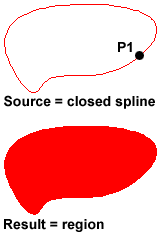
A region is a surface created from objects that form a closed shape, known as a loop. The Region command is used to transform objects into regions rather than actually drawing them (i.e. you will need to draw the closed shape or loop first). Once a region is created, there may be little visual difference to the drawing. However, if you set the shade mode to "Flat Shaded", ViewShadeFlat Shaded, you will see that the region is, in fact, a surface and not simply an outline. Regions are particularly useful in 3D modeling because they can be extruded.Region

Before starting the Region command, draw a closed shape such as a rectangle, circle or any closed polyline or spline.

Command Sequence

Command: REGION
Select objects: (Pick P1)
Select objects:Return
1 loop extracted.
1 Region created.

You can use the boolean commands, Union, Subtract and Intersect to create complex regions.

Toolbar Draw Region
Pull-down DrawRegion
Keyboard REGION short-cut REG

A region is a surface created from objects that form a closed shape, known as a loop. The Region command is used to transform objects into regions rather than actually drawing them (i.e. you will need to draw the closed shape or loop first). Once a region is created, there may be little visual difference to the drawing. However, if you set the shade mode to "Flat Shaded", ViewShadeFlat Shaded, you will see that the region is, in fact, a surface and not simply an outline. Regions are particularly useful in 3D modeling because they can be extruded.Region

Before starting the Region command, draw a closed shape such as a rectangle, circle or any closed polyline or spline.

Command Sequence

Command: REGION
Select objects: (Pick P1)
Select objects:Return
1 loop extracted.
1 Region created.

You can use the boolean commands, Union, Subtract and Intersect to create complex regions.

Read more»

The Ellipse Arc Command

Toolbar Draw Ellipse Arc
Pull-down DrawEllipseArc
Keyboard ELLIPSE Return A short-cut EL Return A

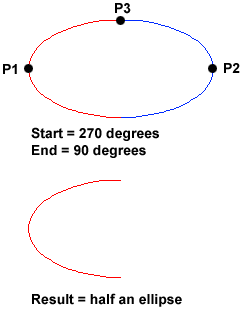
Ellipse ArcThe Ellipse Arc command is very similar to the Ellipse command, described above. The only difference is that, in addition to specifying the two axis end points and the "distance to other axis" point, you are prompted for a start and end angle for the arc. You may specify angles by picking points or by entering values at the command prompt. Remember that angles are measured in an anti-clockwise direction, starting at the 3 o'clock position.
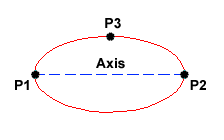
In truth, the Ellipse Arc command is not a new or separate command; it is just an option of the Ellipse command and it therefore has no unique command line name. It is curious why Autodesk considered this option important enough to give it it's own button on the Draw toolbar. Still, there it is.

Command Sequence

Command: ELLIPSE
Specify axis endpoint of ellipse or [Arc/Center]: A
Specify axis endpoint of elliptical arc or [Center]: (pick P1)
Specify other endpoint of axis: (pick P2)
Specify distance to other axis or [Rotation]: (pick P3)
Specify start angle or [Parameter]: 270
Specify end angle or [Parameter/Included angle]: 90

Toolbar Draw Ellipse Arc
Pull-down DrawEllipseArc
Keyboard ELLIPSE Return A short-cut EL Return A

Ellipse ArcThe Ellipse Arc command is very similar to the Ellipse command, described above. The only difference is that, in addition to specifying the two axis end points and the "distance to other axis" point, you are prompted for a start and end angle for the arc. You may specify angles by picking points or by entering values at the command prompt. Remember that angles are measured in an anti-clockwise direction, starting at the 3 o'clock position.

In truth, the Ellipse Arc command is not a new or separate command; it is just an option of the Ellipse command and it therefore has no unique command line name. It is curious why Autodesk considered this option important enough to give it it's own button on the Draw toolbar. Still, there it is.

Command Sequence

Command: ELLIPSE
Specify axis endpoint of ellipse or [Arc/Center]: A
Specify axis endpoint of elliptical arc or [Center]: (pick P1)
Specify other endpoint of axis: (pick P2)
Specify distance to other axis or [Rotation]: (pick P3)
Specify start angle or [Parameter]: 270
Specify end angle or [Parameter/Included angle]: 90

Read more»

The Ellipse Command

Toolbar DrawEllipse
Pull-down DrawEllipseAxis, End
Keyboard ELLIPSE short-cut EL

Ellipse The Ellipse command gives you a number of different creation options. The default option is to pick the two end points of an axis and then a third point to define the eccentricity of the ellipse. After you have mastered the default option, try out the others.
Command Sequence

Command: ELLIPSE
Specify axis endpoint of ellipse or [Arc/Center]: (pick P1)
Specify other endpoint of axis: (pick P2)
Specify distance to other axis or [Rotation]: (pick P3)

The ellipse command can also be used to draw isometric circles. See the worked example in the Drawing Aids tutorial to find out how to do this and how to draw in isometric projection with AutoCAD.

Toolbar DrawEllipse
Pull-down DrawEllipseAxis, End
Keyboard ELLIPSE short-cut EL

Ellipse The Ellipse command gives you a number of different creation options. The default option is to pick the two end points of an axis and then a third point to define the eccentricity of the ellipse. After you have mastered the default option, try out the others.

Command Sequence

Command: ELLIPSE
Specify axis endpoint of ellipse or [Arc/Center]: (pick P1)
Specify other endpoint of axis: (pick P2)
Specify distance to other axis or [Rotation]: (pick P3)

The ellipse command can also be used to draw isometric circles. See the worked example in the Drawing Aids tutorial to find out how to do this and how to draw in isometric projection with AutoCAD.

Read more»

The Spline Command

Toolbar Draw Spline
Pull-down DrawSpline
Keyboard SPLINE short-cut SPL

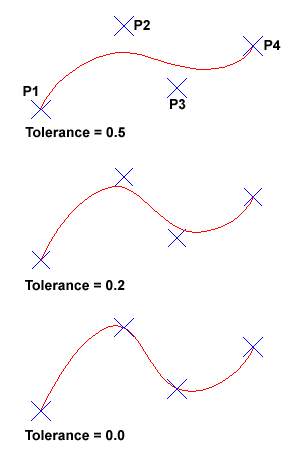
Spline Tolerance The Spline command creates a type of spline known as a nonuniform rational B-spline, NURBS for short. A spline is a smooth curve that is fitted along a number of control points. The Fit Tolerance option can be used to control how closely the spline conforms to the control points. A low tolerance value causes the spline to form close to the control points. A tolerance of 0 (zero) forces the spline to pass through the control points. The illustration on the right shows the effect of different tolerance values on a spline that is defined using the same four control points, P1, P2, P3 and P4.
Splines can be edited after they have been created using the SPLINEDIT command, ModifyObjectSpline from the pull-down menu. Using this command, you can change the tolerance, add more control points move control points and close splines, amongst other things. However, if you just want to move spline control points, it is best to use grips. See the Stretching with Grips section of the Modifying Objects tutorial for details.

Command Sequence

Command: SPLINE
Specify first point or [Object]: (Pick P1)
Specify next point: (Pick P2)
Specify next point or [Close/Fit tolerance] : (Pick P3)
Specify next point or [Close/Fit tolerance] : (Pick P4)
Specify next point or [Close/Fit tolerance] : Return
Specify start tangent: (pick a point)
Specify end tangent: (pick a point)

You can create linear approximations to splines by smoothing polylines with the PEDIT command, ModifyPolyline from the pull-down menu. However, you can also turn polylines into true splines using the Object option of the Spline command

Toolbar Draw Spline
Pull-down DrawSpline
Keyboard SPLINE short-cut SPL

Spline Tolerance The Spline command creates a type of spline known as a nonuniform rational B-spline, NURBS for short. A spline is a smooth curve that is fitted along a number of control points. The Fit Tolerance option can be used to control how closely the spline conforms to the control points. A low tolerance value causes the spline to form close to the control points. A tolerance of 0 (zero) forces the spline to pass through the control points. The illustration on the right shows the effect of different tolerance values on a spline that is defined using the same four control points, P1, P2, P3 and P4.

Splines can be edited after they have been created using the SPLINEDIT command, ModifyObjectSpline from the pull-down menu. Using this command, you can change the tolerance, add more control points move control points and close splines, amongst other things. However, if you just want to move spline control points, it is best to use grips. See the Stretching with Grips section of the Modifying Objects tutorial for details.

Command Sequence

Command: SPLINE
Specify first point or [Object]: (Pick P1)
Specify next point: (Pick P2)
Specify next point or [Close/Fit tolerance] : (Pick P3)
Specify next point or [Close/Fit tolerance] : (Pick P4)
Specify next point or [Close/Fit tolerance] : Return
Specify start tangent: (pick a point)
Specify end tangent: (pick a point)

You can create linear approximations to splines by smoothing polylines with the PEDIT command, ModifyPolyline from the pull-down menu. However, you can also turn polylines into true splines using the Object option of the Spline command

Read more»

The Arc Command

Toolbar Draw Arc
Pull-down DrawArc3 Points
Keyboard ARC short-cut A

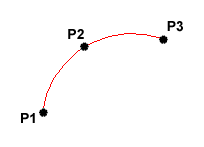
Arc The Arc command allows you to draw an arc of a circle. There are numerous ways to define an arc, the default method uses three pick points, a start point, a second point and an end point. Using this method, the drawn arc will start at the first pick point, pass through the second point and end at the third point. Once you have mastered the default method try some of the others. You may, for example need to draw an arc with a specific radius. All of the Arc command options are available from the pull-down menu.
Command Sequence

Command: ARC
Specify start point of arc or [Center]: (pick P1)
Specify second point of arc or [Center/End]: (pick P2)
Specify end point of arc: (pick P3)

It is also possible to create an arc by trimming a circle object. In practice, many arcs are actually created this way. See the Trim command on the Modifying Objects tutorial for details.

Toolbar Draw Arc
Pull-down DrawArc3 Points
Keyboard ARC short-cut A

Arc The Arc command allows you to draw an arc of a circle. There are numerous ways to define an arc, the default method uses three pick points, a start point, a second point and an end point. Using this method, the drawn arc will start at the first pick point, pass through the second point and end at the third point. Once you have mastered the default method try some of the others. You may, for example need to draw an arc with a specific radius. All of the Arc command options are available from the pull-down menu.

Command Sequence

Command: ARC
Specify start point of arc or [Center]: (pick P1)
Specify second point of arc or [Center/End]: (pick P2)
Specify end point of arc: (pick P3)

It is also possible to create an arc by trimming a circle object. In practice, many arcs are actually created this way. See the Trim command on the Modifying Objects tutorial for details.

Read more»

The Circle Command

Circle
Toolbar Draw Circle
Pull-down DrawCircleCenter, Radius
Keyboard CIRCLE short-cut C

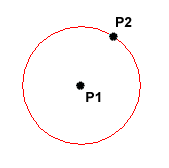
The Circle command is used to draw circles. There are a number of ways you can define the circle. The default method is to pick the centre point and then to either pick a second point on the circumference of the circle or enter the circle radius at the keyboard.

Command Sequence

Command: CIRCLE
Specify center point for circle or [3P/2P/Ttr (tan tan radius)]: (pick P1)
Specify radius of circle or [Diameter] <50.0195>: (pick P2 or enter the exact radius)

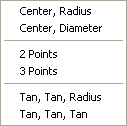
Circle Menu Options As you can see from the command prompt above the default options are always indicated in triangular brackets like so and command options appear within square brackets like so [Option]. Each option is separated by a forward slash like this /. You can choose to use the alternative options by typing them at the prompt. For example, the circle command gives you three extra options to define a circle. 3P which uses any three points on the circumference, 2P which uses two points on the circumference to form a diameter and Ttr which stands for Tangent Tangent Radius. Obviously to use this last option you need to have drawn two lines which you can use as tangents to the circle. Try these options out to see how they work. Note that to invoke a command option, you need only type the upper-case part of the option name. For example, if you want to use the Ttr option, you need only enter "T". There are two more circle options on the pull-down menu that enable you to draw a circle by defining the center and diameter or by using 3 tangents.

Circle

Toolbar Draw Circle
Pull-down DrawCircleCenter, Radius
Keyboard CIRCLE short-cut C

The Circle command is used to draw circles. There are a number of ways you can define the circle. The default method is to pick the centre point and then to either pick a second point on the circumference of the circle or enter the circle radius at the keyboard.

Command Sequence

Command: CIRCLE
Specify center point for circle or [3P/2P/Ttr (tan tan radius)]: (pick P1)
Specify radius of circle or [Diameter] <50.0195>: (pick P2 or enter the exact radius)

Circle Menu Options As you can see from the command prompt above the default options are always indicated in triangular brackets like so and command options appear within square brackets like so [Option]. Each option is separated by a forward slash like this /. You can choose to use the alternative options by typing them at the prompt. For example, the circle command gives you three extra options to define a circle. 3P which uses any three points on the circumference, 2P which uses two points on the circumference to form a diameter and Ttr which stands for Tangent Tangent Radius. Obviously to use this last option you need to have drawn two lines which you can use as tangents to the circle. Try these options out to see how they work. Note that to invoke a command option, you need only type the upper-case part of the option name. For example, if you want to use the Ttr option, you need only enter "T". There are two more circle options on the pull-down menu that enable you to draw a circle by defining the center and diameter or by using 3 tangents.

Read more»

The 3D Polyline Command

Toolbar custom 3D Polyline
Pull-down Draw3D Polyline
Keyboard3DPOLY

The 3D Polyline command works in exactly the same way as the Polyline command. The main difference between a normal polyline and a 3D polyline is that each vertex (pick point) of a 3D polyline can have a different value for Z (height). In normal (2D) polylines, all vertexes must have the same Z value.

3D polyline objects are not as complex as their 2D cousins. For example, they cannot contain arc segments and they cannot be given widths. However, they can be very useful for 3D modeling.

Command Sequence

Command: 3DPOLY
Specify start point of polyline: (pick a point)
Specify endpoint of line or [Undo]: (pick another point)
Specify endpoint of line or [Undo]: (pick a third point)
Specify endpoint of line or [Close/Undo]: Return(to end, C to close or continue picking points)

Notice that you are not prompted for a Z value each time you pick a point. You must either use one of the Object Snaps to pick a point with the required Z value or use the ".XY" filter to force AutoCAD to prompt for a Z value.

Toolbar custom 3D Polyline
Pull-down Draw3D Polyline
Keyboard3DPOLY

The 3D Polyline command works in exactly the same way as the Polyline command. The main difference between a normal polyline and a 3D polyline is that each vertex (pick point) of a 3D polyline can have a different value for Z (height). In normal (2D) polylines, all vertexes must have the same Z value.

3D polyline objects are not as complex as their 2D cousins. For example, they cannot contain arc segments and they cannot be given widths. However, they can be very useful for 3D modeling.

Command Sequence

Command: 3DPOLY
Specify start point of polyline: (pick a point)
Specify endpoint of line or [Undo]: (pick another point)
Specify endpoint of line or [Undo]: (pick a third point)
Specify endpoint of line or [Close/Undo]: Return(to end, C to close or continue picking points)

Notice that you are not prompted for a Z value each time you pick a point. You must either use one of the Object Snaps to pick a point with the required Z value or use the ".XY" filter to force AutoCAD to prompt for a Z value.

Read more»